The iOS Shortcuts app is a powerful tool that can automate a variety of tasks. One way I use it is to send emails to myself. When I find interesting content on the Internet (websites, social media, etc.), I send myself an email with it. Later in the evening, I go over these emails and read the materials I sent myself earlier.
How to create such an automation? Read on.
Creating automation
You will need to follow a few steps:
1. Start by creating a new shortcut.
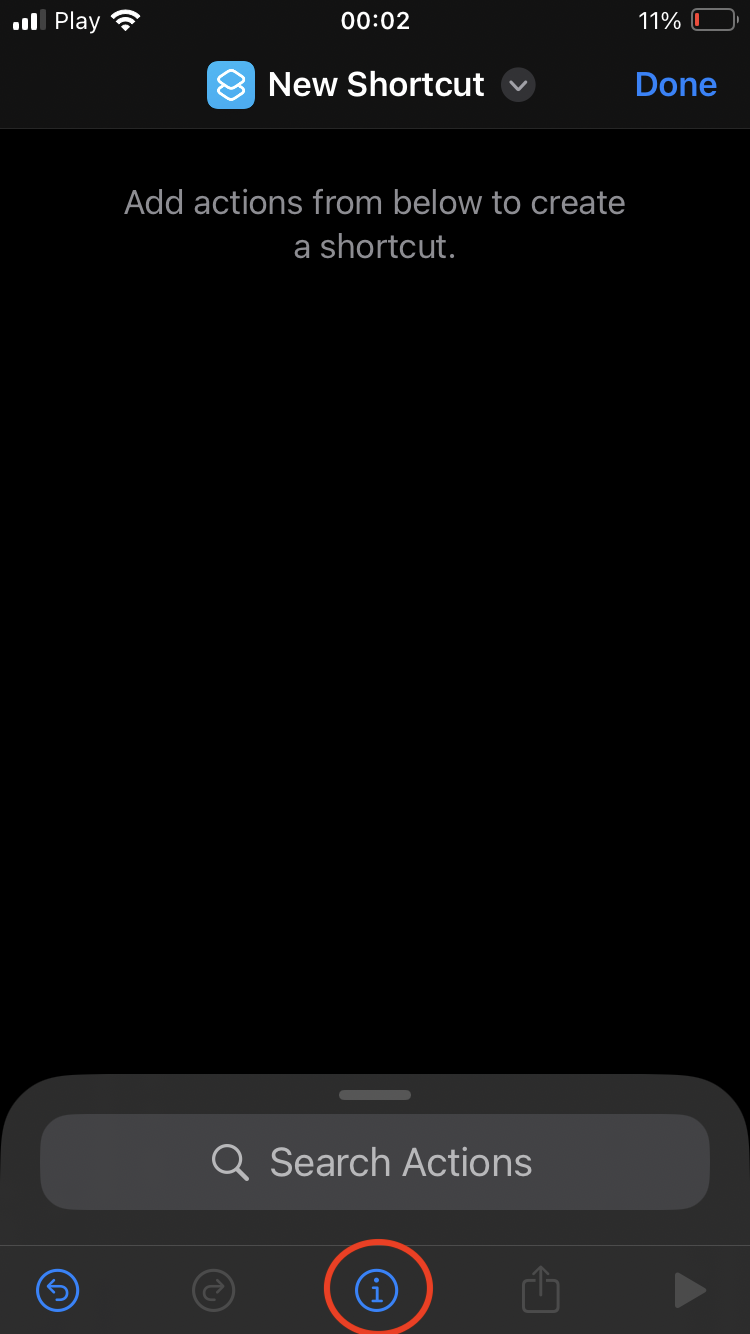
2. Tap the “i” icon at the bottom (source).
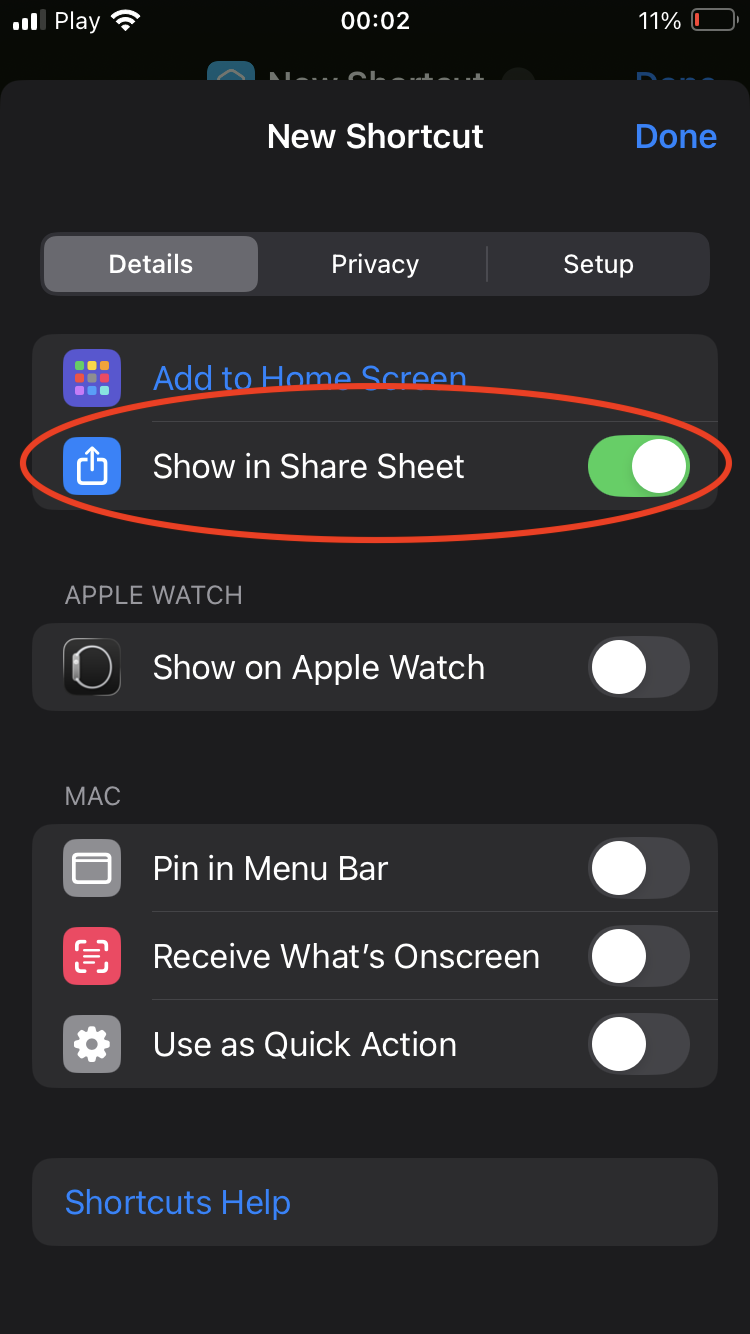
3. Select “Show in Share Sheet”.
4. Add action “Send email” and fill in the details.
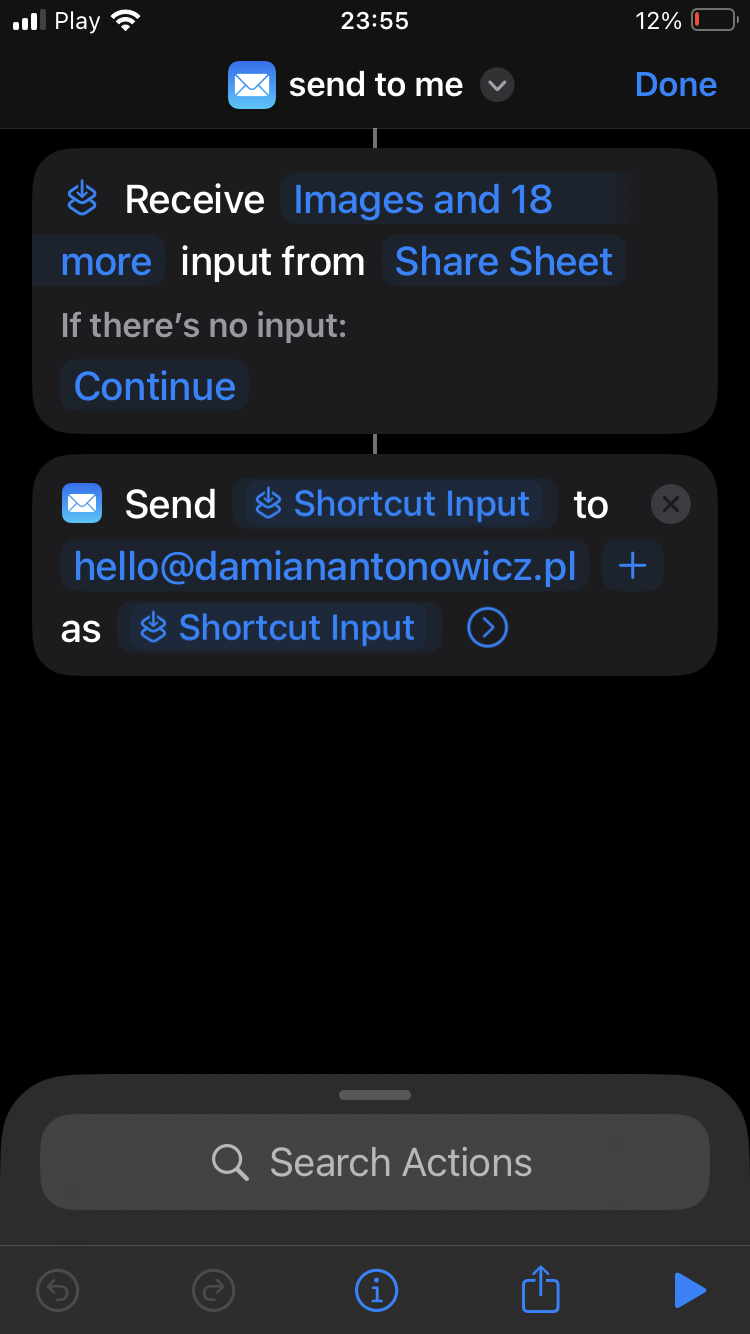
5. Name your shortcut and tap “Done”.
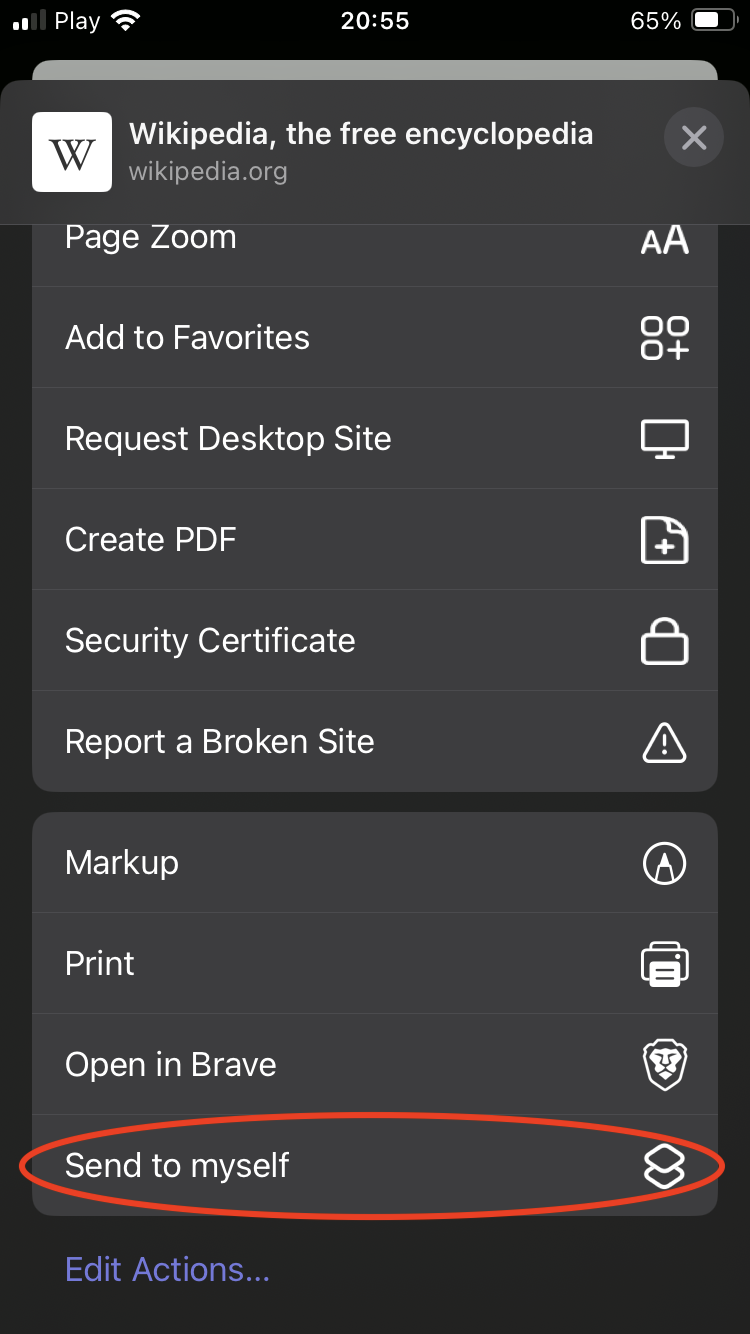
Your new shortcut is now ready to use from the iOS share sheet. For example, open the browser and navigate to a web page. Then open the share sheet, where you should see your shortcut at the bottom of the list.
Shortcuts can also be added to your home screen. In the Shortcut app, select the “Share” option for the specific shortcut, then select “Add to Home Screen” and your shortcut will appear on your home screen.
Happy automating with iOS Shortcuts!
